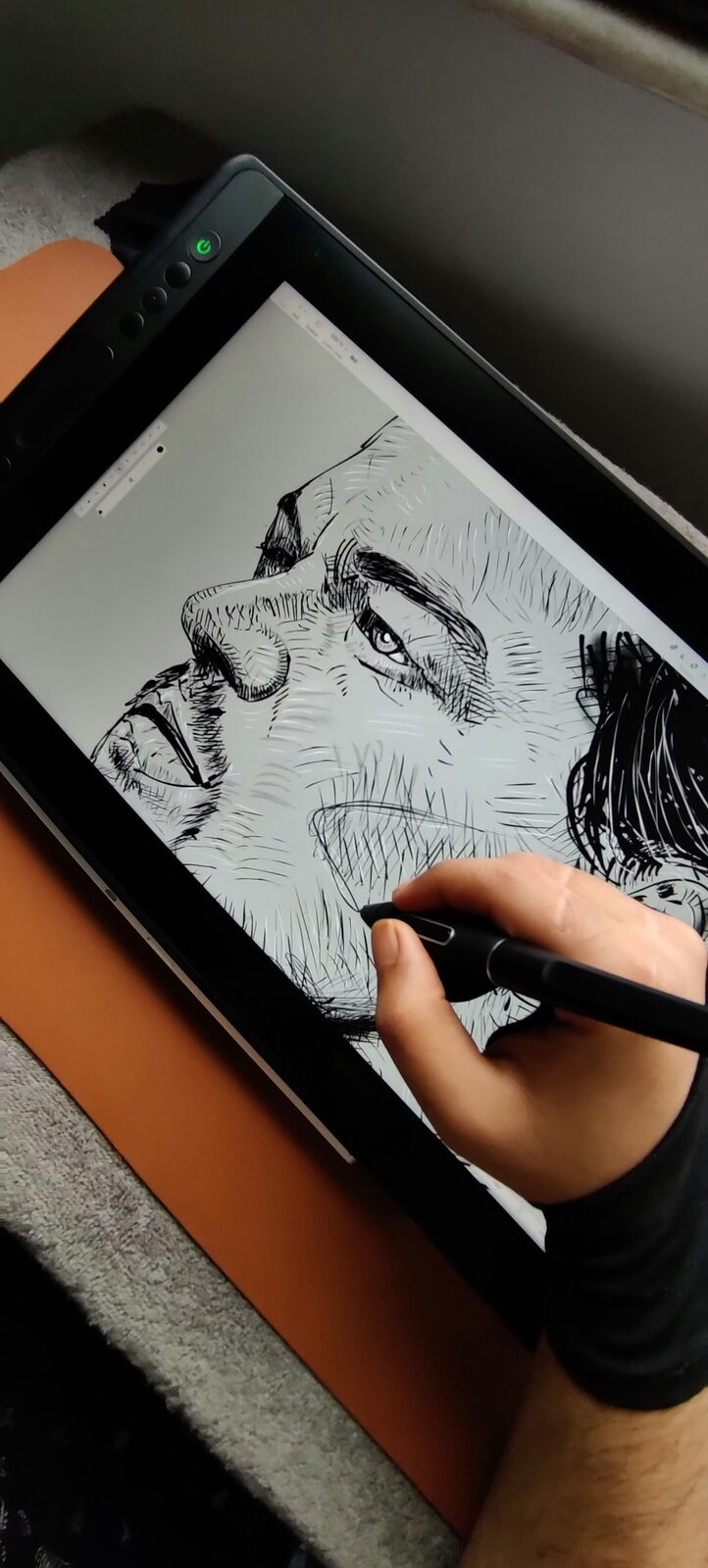

Your First Hour With a New Drawing Tablet: A Gentle Setup Guide
A small, free way to start today. You’ve unboxed the tablet, the pen is in your hand, and the cursor is doing something strange. That is completely normal. Here is a calm first hour that gets you drawing, with nothing extra to buy.
Step 1: Install the driver from the maker’s website
Your tablet will usually move the cursor as soon as you plug it in, but the driver is what turns on pressure sensitivity, which means thicker or thinner lines depending on how hard you press. Download the current driver from the manufacturer’s own website for your exact model, not from a third-party download site. Install it, then restart your computer if it asks.
One tip: if you have owned a different brand of tablet before, uninstall its old driver first. Two tablet drivers on one computer can sometimes conflict and cause odd pen behavior.
Step 2: Check that pressure works
Open any drawing program and draw one slow line, pressing lightly and then gradually harder. The line should get thicker as you press. If it stays the same width, check two things: the driver is installed, and the pressure setting is switched on in your drawing app’s brush settings. Some apps need this turned on per brush.
Step 3: Match the tablet area to your screen
If you have a pen tablet (no screen), the driver lets you choose which part of the tablet maps to your screen. For most people, the best starting setup is the full tablet area mapped to the full screen, with the proportions kept equal. If circles come out looking like ovals, the proportions are off. Look for a “keep proportions” or similar option in the driver settings.
If you have a pen display (with a screen), look for a calibration step in the driver. It makes sure the line appears directly under your pen tip.
Step 4: Set up the pen buttons
Most pens have one or two side buttons. Many artists set one to right-click and one to undo, but there is no right answer. Pick something simple, and change it later once you’ve learned what you reach for.
Step 5: Sit comfortably
This one is easy to skip, and it matters. Keep your shoulders loose, your wrist neutral, and your screen at a height where you aren’t looking down for long stretches. If you’re drawing flat on a desk with a pen display, take a short stretch break every 30 to 40 minutes. Gentle habits now save aches later.
Step 6: Draw something silly and small
Don’t start a masterpiece. Spend ten minutes on three things:
- Straight lines. Draw lines from one point to another, fast and confident. Don’t fix them.
- Circles. Draw circles in one smooth motion. They will be wobbly. That’s the point.
- Your name, signed ten times. It teaches pen control better than you’d think.
These feel plain, and that’s what makes them effective. They teach your hand how far the pen moves compared to what you see on screen, which is the main thing a new tablet asks of you.
Step 7: Give it a week
The strange feeling of drawing in one place while looking at another fades with regular use. Ten to fifteen minutes a day is plenty. If something still feels off after your first week, change one setting at a time so you can tell what helped.
What to do next
When the first hour feels comfortable, try the warm-up exercises we shared earlier, and then thumbnail sketches before your first real drawing.
Related reading: free warm-up exercises
If you haven’t chosen a tablet yet, our beginner guide covers the picks and prices.
Related reading: best drawing tablet for beginners
A quiet little note
Every artist starts somewhere, and the first hour is allowed to be messy. If your first lines look like a cat walked across the screen, you’re doing it right.